
Subject area: ORDER
Overview
The Logical Data Model of the ORDER Subject Area ensures support for the following functionalities:
1. Order can be created ONLINE
The REGISTERED_ONLINE Customer login on Store website and places an Order.
2. Order can be handed off to Customer through SHIPMENT
Order is delivered to Customer at SHIPMENT.Shipment_Address. See Entity: SHIPMENT, Attribute: Shipment_Address for more information.
3. Order can be paid with CARD or DIGITAL (Stripe, PayPal, digital wallets etc)
4. Order must be paid IN_ADVANCE
Order Process and Status
The Order Process and Status Diagram details the process steps and the Order statuses from the moment the Customer initiates a NEW Order till the moment the Customer acknowledges the Order COMPLETE:
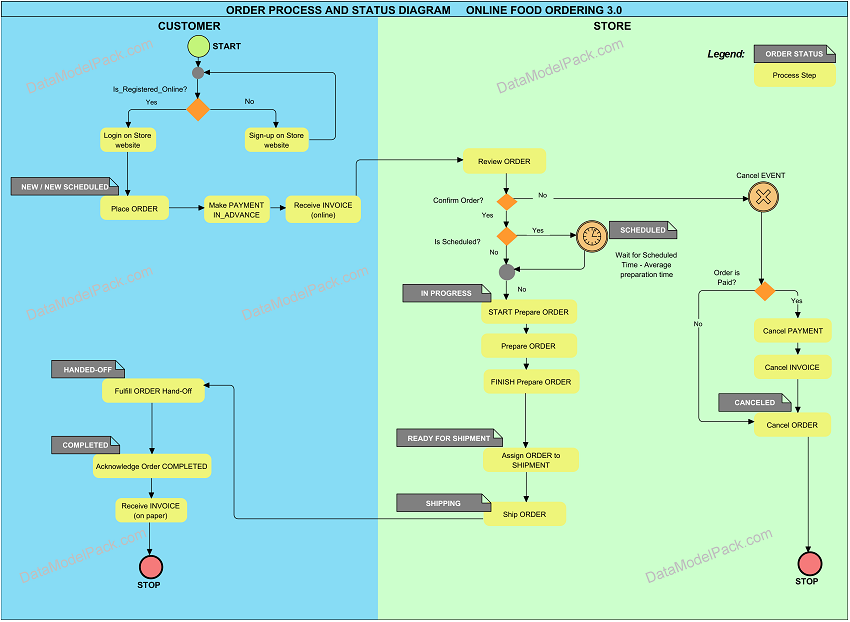
Process Steps and Use Cases
Case: Customer Places Order through ONLINE Sales Channel
A REGISTERED_ONLINE Customer can login on Store website and place an Order.
See Subject Area: CUSTOMER, Entity: CUSTOMER for more information.
Step: Customer Places Order
Actions:
Customer login on Store website.
Customer chooses the Order type: NOT_SCHEDULED or SCHEDULED
If Customer chooses NOT_SCHEDULED Order then the Order must be delivered as soon as possible. In this case:
Order status is initialized to NEW.
Order Status: NEW
If Customer chooses SCHEDULED Order then the Order can be delivered later, at a time specified by Customer. For example Customer can place the Order in the morning and schedule the delivery for the evening. In this case:
ORDER_HEADER.Is_Scheduled attribute is set TRUE
ORDER_HEADER.Scheduled_Time attribute is set to the estimated time for delivery. See Entity: ORDER_HEADER.
Order status is initialized to NEW_SCHEDULED.
Order Status: NEW_SCHEDULED
Customer is asked to make Payment IN_ADVANCE. Next step is:
Step: Customer Makes PAYMENT IN_ADVANCE
Actions:
Customer should fill in the payment details and then press a Submit payment button.
Payment is validated through the payment processor (external system).
ORDER_HEADER.Is_Paid attribute is set TRUE. See Entity: ORDER_HEADER for more information.
All the PAYMENT attributes are recorded in the PAYMENT entity.
All the INVOICE attributes are recorded in the INVOICE entity.
See Subject Area: PAYMENT AND INVOICE for more information.
Next step is:
Step: Customer Receives Invoice
Actions:
Customer can view and download the INVOICE.
See Subject Area: PAYMENT AND INVOICE for more information.
Next step is:
Step: Store Employee Reviews Order
In this step Store Employee reviews the Orders queue.
The Review Order step outcome can be:
Case 1: Store Employee does not validate the Order
For example Store Employee does not validate the Order when the Store does not have enough ingredients to prepare the Order (an Item is not in stock).
In this case Order can be Canceled.
Step: Store Employee Cancels Order
Actions:
Store Employee should fill in the ORDER_HEADER.Cancel_Reason and then press a Cancel Order button.
When Store Employee presses the Cancel Order button and the CANCEL event occurs, the application should check if ORDER_HEADER.Is_Paid attribute is TRUE. That means the Order was already paid IN_ADVANCE.
If ORDER_HEADER.Is_Paid attribute is TRUE, then the next steps are:
Step: Store Employee Cancels Payment and
Step: Store Employee Cancels Invoice
See Subject Area: PAYMENT AND INVOICE, Entity: PAYMENT, Entity: INVOICE for more information.
Order Status changes to CANCELED.
Order Status: CANCELED
Case 2: Store Employee validates a NEW_SCHEDULED Order
Step: Store Employee Validates a NEW_SCHEDULED Order
Actions:
Store Employee browses the Orders queue and presses the Validate Order button for an Order in NEW_SCHEDULED status. An Order in NEW_SCHEDULED status has the ORDER_HEADER.Is_Scheduled attribute set TRUE. This is an Order with preparation scheduled for later. See Entity: ORDER_HEADER for more information.
In this case:
Order Status changes from NEW_SCHEDULED to SCHEDULED.
Order Status: SCHEDULED
At the time the SCHEDULED Order preparation should start:
Step: Store Employee Starts Prepare Order
Actions:
Store Employee presses the Start Prepare Order button to confirm Order preparation started.
Order Status changes from SCHEDULED to IN PROGRESS.
Order Status: IN_PROGRESS
Order passes to next step. See Step: Store Employee Prepares Order
Case 3: Store Employee validates a NEW Order
Step: Store Employee Validates a NEW Order
Actions:
Store Employee browses the Orders queue and presses the Validate Order button for an Order in NEW status. An Order in NEW status has the ORDER_HEADER.Is_Scheduled attribute set FALSE. This is an Order with immediate preparation. See Entity: ORDER_HEADER for more information.
In this case:
Order Status changes from NEW to IN_PROGRESS.
Order Status: IN_PROGRESS
Order passes to next step. See Step: Store Employee Prepares Order
Step: Store Employee Prepares Order
Actions:
At this step, Store Employees prepare all the Orders that have IN_PROGRESS status. An Order remains in the IN_PROGRESS status during the Prepare Order step.
The Prepare Order step duration is impacted by the following ORDER_HEADER attributes:
Placed_Time
Scheduled_Time
Delayed_Time
Ready_Time
and the SETTING attributes:
Average_Preparation_Time
Busy_Preparation_Time
Prepare Order duration for an usual (not scheduled) Order
Start: Placed_Time
Duration: Average_Preparation_Time
End: Placed_Time + Average_Preparation_Time = Ready_Time
Prepare Order duration for a scheduled Order
Start: Scheduled_Time - Average_Preparation_Time
Duration: Average_Preparation_Time
End: Scheduled_Time= Ready_Time
Prepare Order duration for an usual (not scheduled) Order that is delayed
Start: Placed_Time
Duration: Average_Preparation_Time+Delayed_Time
End: Placed_Time + Average_Preparation_Time+Delayed_Time = Ready_Time
Prepare Order duration for scheduled Order that is delayed
Start: Scheduled_Time - Average_Preparation_Time
Duration: Average_Preparation_Time+Delayed_Time
End: Scheduled_Time+Delayed_Time= Ready_Time
Prepare Order duration for an usual (not scheduled) Order when Is_Busy_Mode TRUE
Start: Placed_Time
Duration: Busy_Preparation_Time
End: Placed_Time + Busy_Preparation_Time = Ready_Time
Prepare Order duration for scheduled Order when Is_Busy_Mode TRUE
Start: Scheduled_Time - Busy_Preparation_Time
Duration: Busy_Preparation_Time
End: Scheduled_Time+Busy_Preparation_Time= Ready_Time
Step: Store Employee Finishes Prepare Order
Actions:
At this step, Store Employee presses a Finish Prepare Order button to announce the Order Preparation step is finished, and the Order is ready to be handed off:
- to a Shipment person. The Shipment person could be a Store Employee or a person from an external shipment company.
ORDER_HEADER.Is_Ready attribute is set TRUE. See Entity: ORDER_HEADER for more information.
Order Status changes from IN_PROGRESS to READY_FOR_SHIPMENT:
Order Status: READY_FOR_SHIPMENT
Next step is:
Step: Store Employee Assigns Shipment to Order
Actions:
Order is assigned to Shipment. See Entity: SHIPMENT for more information).
Step: Shipment person Ships the Order
Actions:
Order is handed off to a shipment person.
Order is shipped to the SHIPMENT.Shipment_Address. See Entity: SHIPMENT for more information).
Order status changes from READY_FOR_SHIPMENT to SHIPPING:
Order Status: SHIPPING
Step: Shipment person Fulfills Order Hand-off
Actions:
Customer aknowledges that has received the Order content.
Order Status changes from SHIPMENT to HANDED OFF.
Order Status: HANDED OFF
Step: Customer Acknowledges Order Completed
Actions:
Customer aknowledges Order Completed.
Order Status changes from HANDED OFF to COMPLETE.
Order Status: COMPLETE
Order Entities
The Logical Data Model of the ORDER Subject Area includes the following groups of entities:
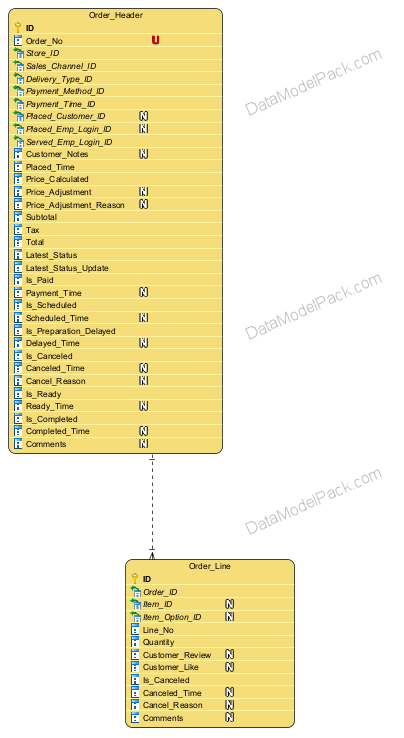
Order content entities
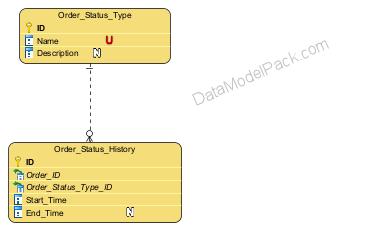
Order status entities
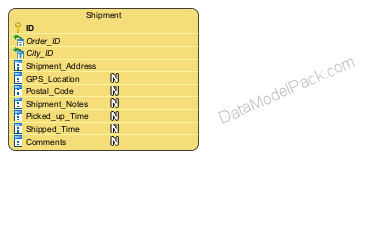
Order shipment entities
Order review entities
Entity: ORDER_HEADER
This entity records information about all Orders.
| Attributes | Description |
|---|---|
ID |
PRIMARY KEY |
Order_No |
Order number that Store associates with the Order. Cannot have two orders with se same Order_No. NOT NULL UNIQUE |
Store_ID |
Lookup for the Store at which the Order was placed. The same application can handle multiple Stores. NOT NULL |
Placed_Customer_ID |
Lookup for the Customer who placed the Order. See Entity: CUSTOMER for more information. NOT NULL |
Served_Emp_Login_ID |
Lookup for the Store Employee who served the Order to Customer. Is the Store Employee who is responsible for Order lifecycle management: Reviews the Order, Validates the Order, etc. See the ORDER PROCESS AND STATUS steps that required Store Employee actions. NOT NULL See Subject Area: EMPLOYEE AND ROLE for more information. |
Customer_Notes |
REGISTERED_ONLINE Customers can add notes to Order (for example information about preferred shipment time interval, etc.) |
Placed_Time |
Timestamp when Order was placed. NOT NULL |
Price_Calculated |
Price calculated for Order (the sum of all order lines prices). See Subject Area: PRICE AND DISCOUNT for more information. NOT NULL |
Price_Adjustment |
Employee Store can apply a price adjustment at Order level. |
Price_Adjustment_Reason |
Reason for price adjustment. |
Subtotal |
Price Calculated + Price Adjustment ( if any). NOT NULL |
Tax |
Tax calculated. NOT NULL |
Total |
Total calculated. NOT NULL |
Latest_Status |
Latest status of Order. Every time when Order status changes, application should automatically update this attribute and also insert the Order latest status in the ORDER_STATUS_HISTORY entity. See Entity: ORDER_STATUS_HISTORY for more information. NOT NULL |
Latest_Status_Update |
The timestamp when the Order entered the latest status. Every time when Order status changes, application should automatically update this attribute and also update the ORDER_STATUS_HISTORY.Start_Time attribute for the latest (most recent) Order status. The ORDER_HEADER.Latest_Status_Update attribute should be always synchronized with the ORDER_STATUS_HISTORY.Start_Time attribute for the latest (most recent) Order status. See Entity: ORDER_STATUS_HISTORY for more information. NOT NULL |
Is_Paid |
Flag attribute to indicate if Order has been paid. Example: ⦁ If Is_Paid is TRUE then Order is paid ⦁ If Is_Paid is FALSE then Order has not been paid. NOT NULL |
Payment_Time |
Timestamp when Order was paid. If Is_Paid is FALSE then Payment_Time is NULL. |
Is_Scheduled |
Flag attribute to indicate if the Customer scheduled the Order for later or not. Example: ⦁ If Is_Scheduled is TRUE then Customer scheduled the Order for later. ⦁ If Is_Scheduled is FALSE then Order should be delivered immediately. NOT NULL |
Scheduled_Time |
Timestamp for when Order is scheduled. ⦁ If Is_Scheduled is TRUE then must contain the expected Scheduled Time. ⦁ If Is_Scheduled is FALSE then is NULL. See Order Process and Status, Step: Customer Places Order for more information. |
Is_Preparation_Delayed |
Flag attribute to indicate if Order preparation is delayed. Store Employee can delay a specific Order. Example: When the Online Food Ordering kitchen is very busy and does not want to delay all Orders but only a specific Order, the Store Employee can browse the Orders queue and press a Preparation Delayed button for that Order. In this case the Is_Preparation_Delayed flag is set TRUE for the selected Order. NOT NULL |
Delayed_Time |
Number of minutes the Order is delayed. Example: The Store Employee can choose the delay interval from a list of values: 5, 10, 15, 30 minutes. This delay interval is added to the SETTING. Average_Preparation_Time when calculate the Order preparation time. Optionally, for an ONLINE placed Order, the application can display this Delayed_Time to Customer. See Subject Area: STORE, Entity: SETTING and Order Process and Status - Step: Customer Places Order for more information. |
Is_Canceled |
Flag attribute to indicate if the Order is Canceled. Example: Store Employee presses the Cancel Order button to announce when Order is Canceled. In this case: ⦁ Is_Canceled flag changes from FALSE to TRUE ⦁ at the same time the Order Status changes from NEW or NEW_SCHEDULED to CANCELED. ⦁ at the same time, the application should insert automatically a record with the most recent Order status (CANCELED) in the ORDER_STATUS_HISTORY entity. See the ORDER PROCESS AND STATUS - Step: Store Employee Cancels Order for more information. NOT NULL |
Canceled_Time |
Timestamp when Order was Canceled. NULL |
Cancel_Reason |
Cancel reason. See the ORDER PROCESS AND STATUS - Process Step: Cancel Order for more information. |
Is_Ready |
Flag attribute to indicate if the Order preparation is finished and the Order is ready for delivery. Example: Store Employee presses a Finish Prepare Order button to announce when Order preparation is finished. In this case: ⦁ Is_Ready flag changes from FALSE to TRUE. ⦁ at the same time the Order Status changes from IN_PROGRESS to READY_FOR_SHIPMENT. ⦁ at the same time, the application should insert automatically a record with the most recent Order status (READY_FOR_SHIPMENT) in the ORDER_STATUS_HISTORY entity. See the ORDER PROCESS AND STATUS - Step: Store Employee Finishes Prepare Order for more information. NOT NULL |
Ready_Time |
Timestamp when Order preparation was finished. NULL |
Is_Completed |
Flag attribute to indicate if Customer acknowledged Order Completed. Example: ⦁ Is_Completed flag changes from FALSE to TRUE when Order was handed off to Customer, Order is paid, Customer received Invoice and Customer acknowledged Order Completed. ⦁ at the same time the Order Status changes from HANDED OFF to COMPLETE. ⦁ at the same time application should automatically insert a record with the most recent Order status (COMPLETE) in the ORDER_STATUS_HISTORY entity. See the ORDER PROCESS AND STATUS Step: Customer Acknowledges Order Completed for more information. NOT NULL |
Completed_Time |
Timestamp when Order was acknowledged Completed by Customer. NULL |
Comments |
Internal notes used for clarifications on record content. Can be seen and edited only by Store Employees |
Entity: ORDER_LINE
This entity records information about all the Order Lines assigned to an Order Header (Order). Each time when a menu Item or a menu Item Option is added to an Order, an Order Line is created.
| Attributes | Description |
|---|---|
ID |
PRIMARY KEY |
Order_ID |
Lookup for the Order Header to which the Order Line is assigned. NOT NULL |
Item_ID |
The Order Line record is created when an Item or an Item Option is added to an Order. When the Order Line is created for an Item, the Item_ID is the lookup to that Item. In this case the Item_Option_ID is NULL. |
Item_Option_ID |
The Order Line record is created when an Item or an Item Option is added to an Order. When the Order Line is created for an Item Option, the Item_Option_ID is the lookup to that Item Option. In this case the Item_ID is NULL. |
Line_No |
The sequential number of an Order Line. An Order can have many lines. Each Order Line has a sequential number: 1, 2, 3 etc. This attribute can help to sort the Order lines and also to reference an Order Line (for example when the Store Employee and the Customer review an Order) etc. NOT NULL |
Quantity |
The number of the same menu Items / Item Options added to an Order Line (for example 5 x 'Espresso'). NOT NULL |
Customer_Review |
The REGISTERED_ONLINE Customer who placed an Order ONLINE, can add a review at Order Line level. Note: Customer can add a review (edit the Customer_Review attribute) only after the Order reaches the Order Status: COMPLETE. |
Customer_Like |
The REGISTERED_ONLINE Customer who placed an Order ONLINE can edit a Like/Unlike flag at Order Line level. Customer can edit the Customer_Like flag only after the Order reaches the Order Status: COMPLETE. |
Is_Canceled |
Flag attribute to indicate if the Order Line is Canceled. NOT NULL Note: When an Order is Canceled, all the Order Lines are canceled for that Order. |
Canceled_Time |
Timestamp when Order was Canceled and all the Order Lines were also Canceled. See the Order Process and Status - Step: Store Employee Cancels Order for more information. NULL |
Cancel_Reason |
Reason for which the Order Line was Canceled. Note: Can be copied from ORDER_HEADER. Cancel_Reason. |
Comments |
Internal notes used for clarifications on record content. Can be seen and edited only by Store Employees |
Entity: ORDER_STATUS_TYPE
List of all status types an Order can pass through.
| Attributes | Description |
|---|---|
ID |
PRIMARY KEY |
Name |
Order status type. NOT NULL UNIQUE. Can't have two status types with the same name. |
Description |
Order status type description. |
Is_Active |
Flag attribute to indicate if the status type is still used to control Order process steps or it was canceled permanently. NOT NULL |
Example
ORDER_STATUS_TYPE
| Name |
|---|
| NEW |
| NEW SCHEDULED |
| SCHEDULED |
| CANCELED |
| IN PROGRESS |
| READY FOR SHIPMENT |
| SHIPPING |
| HANDED OFF |
| COMPLETED |
Entity: ORDER_STATUS_HISTORY
This entity records the full status history for an ORDER.
| Attributes | Description |
|---|---|
ID |
PRIMARY KEY |
Order_ID |
Lookup for the Order to which the Order Status is assigned. NOT NULL |
Order_Status_Type_ID |
Lookup for the Order Status Type to be assigned. NOT NULL |
Start_Time |
Timestamp when Order entered the status. NOT NULL |
End_Time |
Timestamp when Order exit the status. When End_Time is NULL, it means Order is still in that status. NULL |
Entity: SHIPMENT
This entity records information about the Order shipment.
| Attributes | Description |
|---|---|
ID |
PRIMARY KEY |
Order_ID |
Lookup for the Order that should be delivered. NOT NULL |
City_ID |
Lookup for the City where the Order should be delivered. NOT NULL |
Shipment_Address |
Shippment Address where the Order should be delivered. NOT NULL |
GPS_Location |
GPS location where the Order should be delivered. |
Postal_Code |
Postal code of the Shippment Address where the Order should be delivered. |
Shipment_Notes |
Customer notes on Shipment. For example can contain details about how to reach on Shipment Address etc. |
Picked_up_Time |
Timestamp when Order was picked-up from Store for Shipment. Note: For the efficient Stores, the time interval between Order is Ready (ORDER_HEADER. Ready_Time) and Order is Picked-up (SHIPMENT.Picked_up_Time) should be close to 0. NULL |
Shipped_Time |
Timestamp when the Order was handed off to Customer at Shipment_Address. When Shipped_Time is NULL, Order has NOT been yet delivered. NULL |
Comments |
Internal notes used for clarifications on record content. Can be seen and edited only by Store Employees |
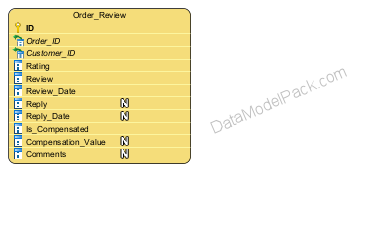
Entity: ORDER_REVIEW
This entity records Customer reviews on Orders.
| Attributes | Description |
|---|---|
ID |
PRIMARY KEY |
Order_ID |
Lookup for the Order for which the Order review is recorded. NOT NULL |
Customer_ID |
Lookup for the Customer who recorded the Order review. NOT NULL |
Rating |
Rating from 1 to 5. NOT NULL |
Review |
Order review text filled in by Customer. NOT NULL |
Review_Date |
Timestamp when the Order review was created. NOT NULL |
Reply |
Reply text from Store Employee to Customer review. NULL |
Reply_Date |
Timestamp when the reply to Customer review was created. NULL |
Is_Compensated |
Flag attribute to indicate if Customer received a money compensation for the Review. Example: When a Customer sent a negative review for an Order that did not meet the expectations, the Store can decide to offer a money compensation to Customer. ⦁ If Customer received a compensation for the Review then Is_Compensated attribute is set TRUE. ⦁ If Customer did not receive a compensation for the Review then Is_Compensated attribute is set FALSE. NOT NULL |
Compensation_Value |
The money amount received by the Customer as a compensation for the Order Review. ⦁ If Is_Compensated is TRUE then the Compensation_Value is the money amount expressed in Store currency received by Customer as compensation. This money amount is also added to the Customer total Credit. Customer can use the Credit with the next Order placed at the Store. See Subject Area: CUSTOMER, Entity: CUSTOMER, Attribute: Credit. ⦁ If Is_Compensated is FALSE then Compensation_Value is NULL. |
Comments |
Internal notes used for clarifications on record content. Can be seen and edited only by Store Employees. NULL |